Entries Tagged 'SolidWorks Reviews' ↓

SolidWorks Video Tip: Surface Extraction with ScanTo3D

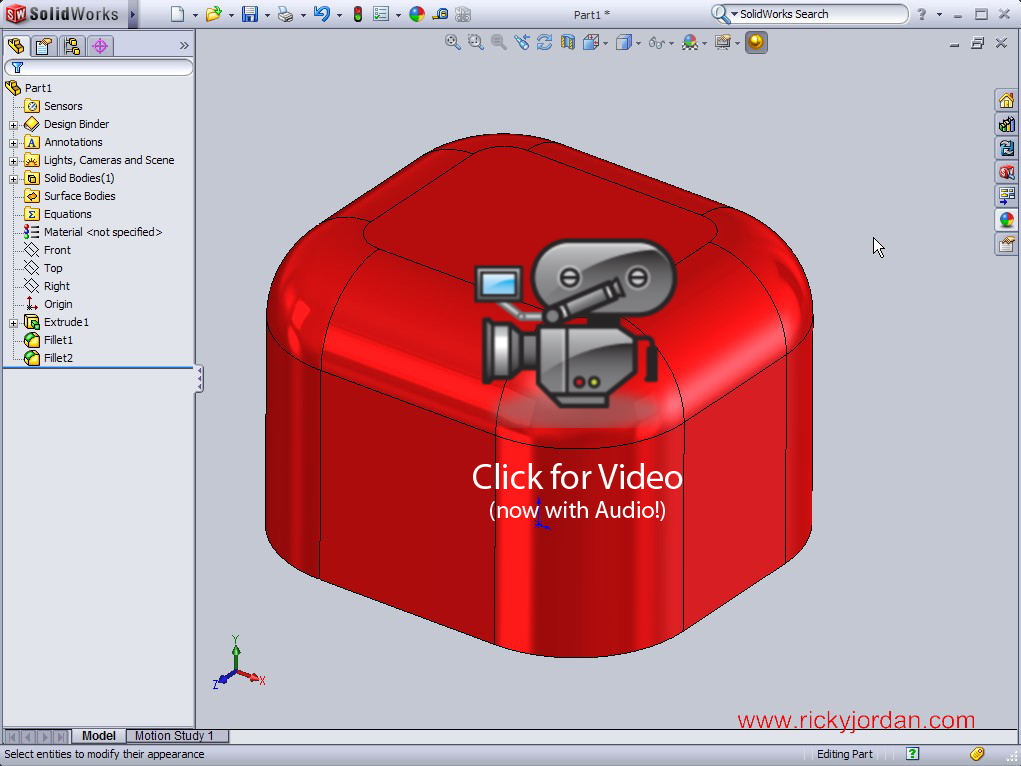
Today’s SolidWorks Video Tip shows an example of how you can use ScanTo3D to extract surface data from mesh files.  This example was inspired by a file I recently helped fellow Blogger Mike Puckett with.  ScanTo3D is part of SolidWorks Premium.  It allows users to open Point Cloud and Mesh data in various formats with a toolset that enables users to construct solid or surface models based on triangulated mesh data.  Click on the image below to access the video tip.

Stay tuned….more to come!

SolidWorks Video Tip: Using Multiple Split Features

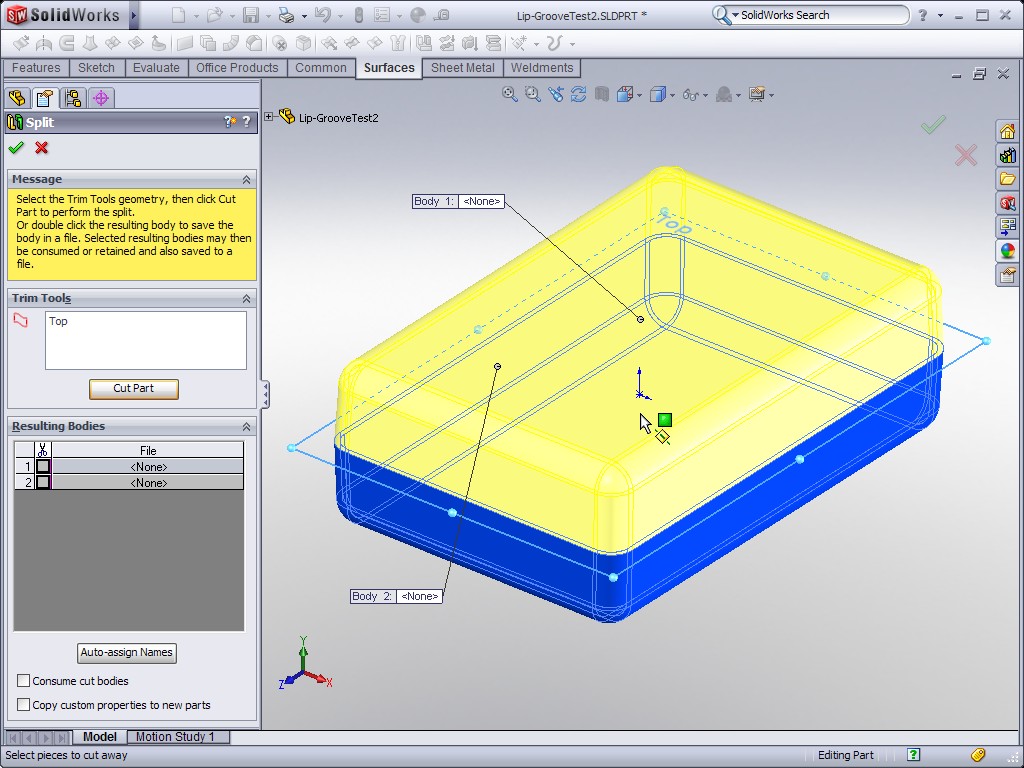
This SolidWorks Video Tip shows the use of multiple trim tool features in the Split command.  The example shows the creation of a simplified polyurethane tool using the Combine and Split commands found inside the SolidWorks Part environment.

I have finally solved the audio lag issue that you might have noticed in previous videos that include voice over.  The video is over 9 minutes long, so be patient, it might take a little longer to load.  Click on the image below to watch this Video Tip.

Stay tuned…..more to come!

SolidWorks Video Tip: 2009 Missing Reference Ghosting

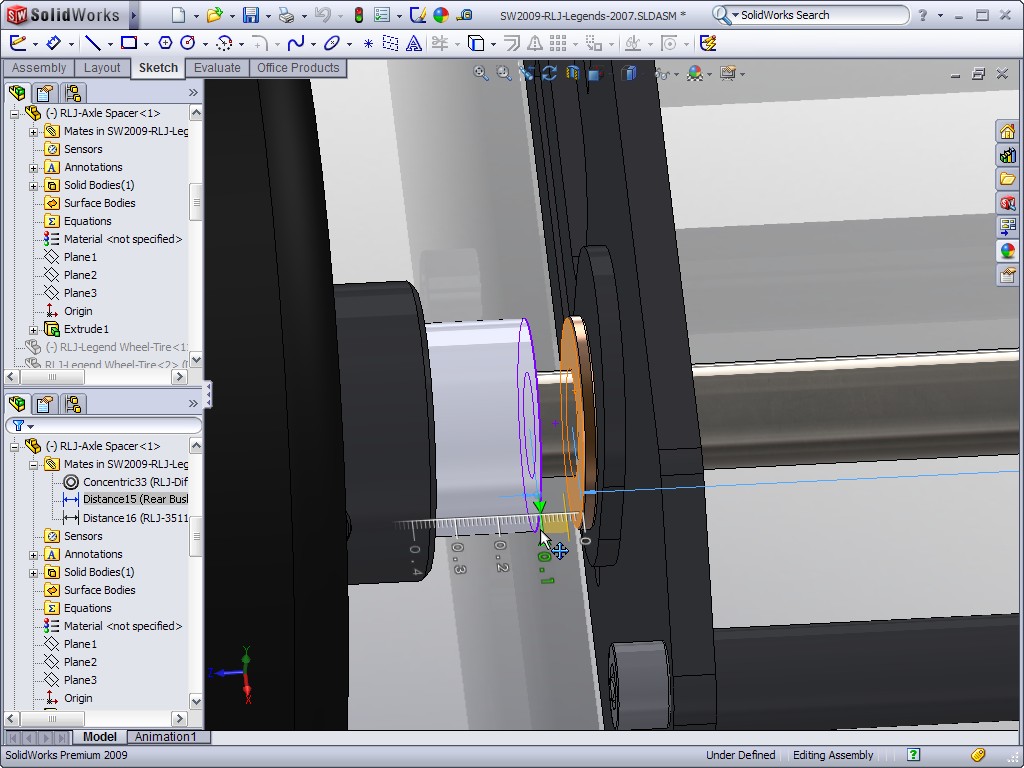
When working with any parametric modeling package references are something a user constantly has to be aware of.  Often times when you make modifications to a model, child features based off of entities changed can fail to regenerate properly due to the nature of the changes made.

SolidWorks 2009 introduces some time saving enhancements that will help users better understand missing references.  Check out the Video below for more.

Stay tuned….more to come!

SolidWorks Video Tip: 2009 BOM Restructure

SolidWorks 2009 has been out long enough now that most of the “major” enhancements have probably been talked about on quite a few sites across the web.  Here’s an enhancement that I have noticed hasn’t gotten much press.  That enhancement is the ability to restructure Bills of Materials (BOM) in Drawings.

This video tip will show a simple example of this new capability that for some companies could be a game changer.  I know that is an awfully big statement, but think about a situation where for assembly speed reasons, sub-assemblies are used in SolidWorks, yet build procedures call for parts and assemblies to be grouped differently.  This functionality can support these instances.  I’ve only tested it on a few assemblies, but it seems to work very well and is pretty easy to pick up.  Click on the link below to see the Video Tip.

SolidWorks Video Tip: 2009 Convert to Sheet Metal

The Convert to Sheet Metal feature is a new tool available in SolidWorks 2009 that allows you to quickly create Sheet Metal parts from an existing solid model.  Click on the link below to see this new tool in action.

The voice over is getting better….still some room for improvement though!

Stay tuned….more to come!

SolidWorks Video Tip: 2009 Numeric Sketch Input

Here’s a great little video tip showing off the Numeric Sketch Input function that is brand new inside SolidWorks 2009.  By changing a couple of settings, some sketch entities can automatically create dimensions as you sketch and you have the ability to input your desired dimensions as part of this process.  The Numeric Sketch Input options are only available for the Line, Circle, Rectangle, & Slot sketch tools.  Below is a screen shot of the Rectangle command.

Note that you have to have the “Add dimensions” option enabled along with the Tools->Options property shown below.

Click on the video link below to see this new feature in action.

SolidWorks Video Tip: 2009 Materials Database

As I mentioned in my SolidWorks 2009 Enhancement Highlights, the Materials Database has been overhauled.  Today we are going to take a closer look at the enhancements to the Database AND Interface along with some other tidbits.  Let’s get started!

Many users in the past have defined materials using custom properties.  In SolidWorks 2008 the ability to link the SolidWorks Material to custom properties was added which allowed for some efficient uses when it came to drawing production.  At the beginning of this video tip you see how to set that property.  Since the material library is much more complete now, I believe the importance of knowing about this option is greater than ever.  The image below shows a preview of the property linking.

The Materials database now opens in a separate window.  The SolidWorks Materials in the database are read-only.  You can create Custom Materials which are fully customizable.  One of the enhancements to the interface is how easy it is to use a SolidWorks Material to create Custom Materials with simple Copy/Paste operations.  Creating Categories and folder structure is now much easier as well.  If you use SolidWorks Simulation (formally called COSMOS) you probably are very familiar with the fact that the SolidWorks based Material list was not NEAR as extensive as the materials library found in the Simulation products.  That is no longer the case.  The SolidWorks based Materials have now been TRULY unified with the Simulation library which results in a MUCH larger material selection straight out of the box for SolidWorks Users.  Those materials of course can be used in Simulations as it has in the past.  The point is that there is no longer a need in the Simulation interface to look for a more expanded set of materials.  The Favorites tab in the Materials database allows you to now control the items listed in the SolidWorks FeatureManager for quick selection (without having to open the database window).  Previously this list was based on recent materials used.  Below is a screenshot of the Materials interface.

Click on the image below to view the Video Tip.

Stay tuned….more to come!

SolidWorks Video Tip: 2009 Title Block & Custom Properties

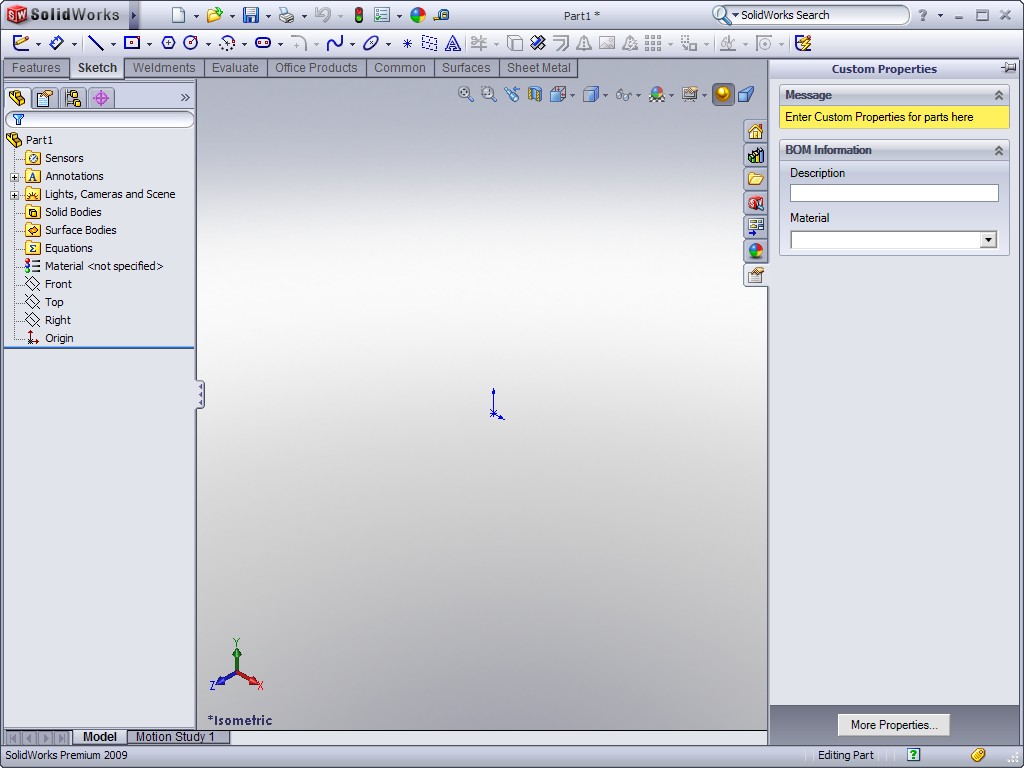
I’m sure if you have read any of the SolidWorks Blogs in the past couple of weeks, you have probably heard of the new Custom Properties Task Pane window in SolidWorks 2009.  The interface for this window is completely customizable.  SolidWorks includes an application called Property Tab Builder that allows you to design the interface so that you can enter custom properties in Parts, Assemblies, and Drawings in a manner that best matches your company’s engineering processes.  A screen shot of the Property Tab Builder is shown below.

Some GREAT news with this is that you can COMBINE this new functionality with the new Title Block Wizard in Drawings.  This Video Tip focuses more on how the two can interact together rather than how to build the Task Pane or Title Block Window.  I will have posts in the coming weeks that will reveal more details on how you can setup these new features.  Click the image below to watch the video.

Stay tuned….more to come!

SolidWorks Video Tip: 2009 Sketch Slot

New in SolidWorks 2009 is the Sketch Slot feature.  This sketch entity allows you to quickly create both Straight Slots and Arc Slots in a variety of creation methods.  When you use this type of sketch entity and an Extrude Boss or Cut is created from it, a temporary axis is created not only at the arc center points, but also at the center point of the slot.  The PropertyManager for the Slot sketch entity is shown below.

Click on the image below to see a quick video demonstration on the various methods available to create a Sketch Slot.

Stay tuned…more to come!

First Look: PhotoView 360

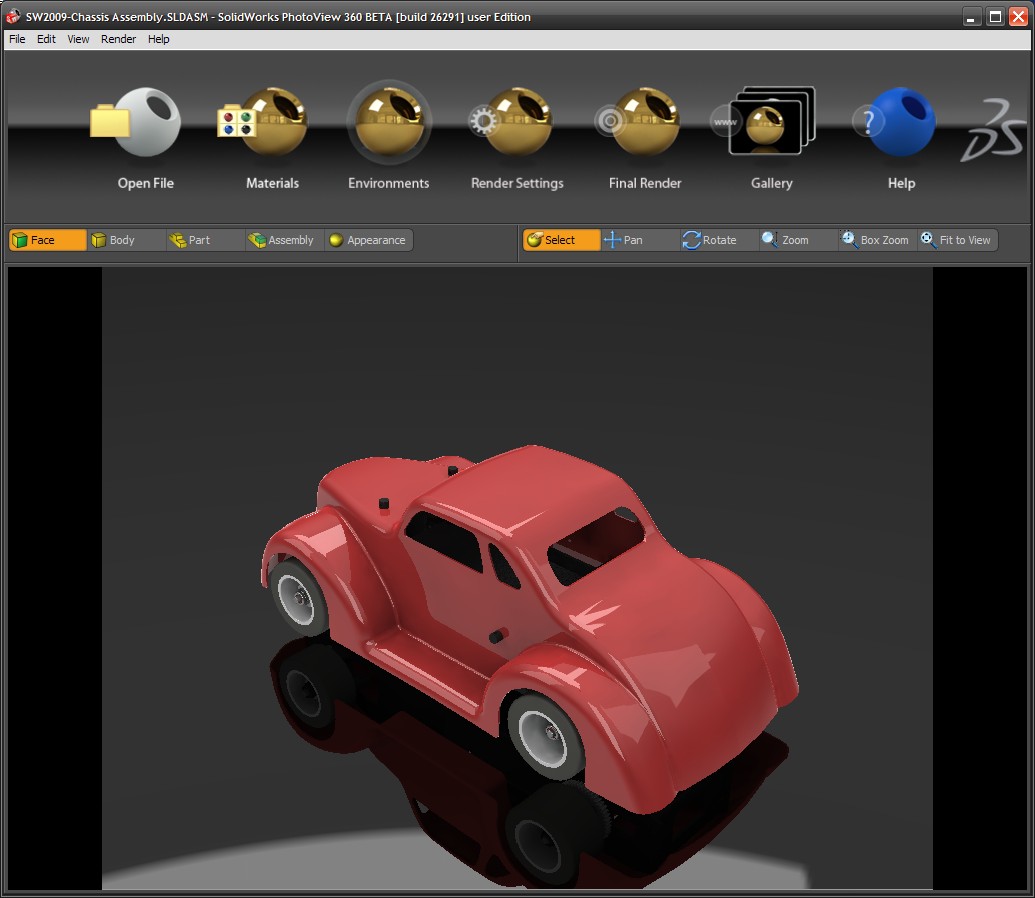
Yesterday I posted a Sneak Peek of PhotoView 360 and today I am posting a First Look of PhotoView 360.  PhotoView 360 Beta is now available for download at the Customer Portal so the rest of the NDA has been lifted.  I can now talk about all aspects of the program.  I honestly didn’t think it would happen this quick so you get the First Look review today which will highlight some of the features of the software.  I’ll post some more in-depth stuff in the coming days.  I’m sure my buddy Rob Rodriguez will be posting some stuff on his Blog too.  Ok…let’s jump right in!  Below is a screen shot of the main User Interface (UI) window of PhotoView 360.

As you can see the UI is VERY simple.  The image you see above is the render preview image.  This is a view of the model that you can rotate, pan, zoom, zoom fit, and box zoom.  It is important to set your floor in SolidWorks as this is the floor setting that PhotoView takes.  The nice thing about this is that it makes rotation of the model easy.  There is no way you can get your model turned upside down.  With PhotoView 360 you can apply Materials through a drag and drop interface.  You also have several different Environments that can be loaded.  Environments carry the background, floor, and lighting setups.  Lets start with the Materials.  When you click the Materials button shown above, a separate window containing the Material selections opens.  The main UI window opens smaller than your full screen size.  This is so that your preview window isn’t too large.  The larger the preview window, the longer it takes to update.  The Materials window is shown below.

You might notice that the Material categories look similar to Appearances in SolidWorks.  That’s because PhotoView is designed to import most of the Appearance data setup in SolidWorks.  In order for this to happen consistently, you’ll need to save your files in the SolidWorks 2009 format.  PhotoView will open files from previous versions, but will most likely have no Appearance/Material data.  Some of the Materials DO have textures and you have the ability to make some adjustments to those textures.

You have the ability to apply Materials to model Faces, Bodies, Parts, Assemblies, and Appearances in PhotoView 360.  The Appearances part of this might throw you off a bit at first but I have found it to be very useful.  When you setup Appearances in SolidWorks, your Appearances are applied in Groups.  For instance, you may apply a single Appearance to many components in an Assembly.  If you have done this, you can drag a Material over one of the components in that group with the Appearance mode selected and ALL of the components in that group will receive the Material in PhotoView.  If you set your Appearances up right in SolidWorks, it can be a timesaver in PhotoView.

When you click the Environments button in the main UI, a separate window opens in a similar manner as the Materials window.  The Environments window is shown below.

There are 15 default environments that come with the software.  I have not gotten into the software enough yet to fully understand what changes can be made to these environments but it looks like the options may be somewhat limited.  Double clicking an Environment box activates it for the model window.

I have prepared two separate videos that show PhotoView 360 in action. Click on the image below to view the first video which shows a model in SolidWorks followed by the quick setup in PhotoView 360.

The second video shows the actual rendering of the model.  I did this to show just how fast the rendering is in PhotoView 360.  Notice the two boxes in the video.  Since I have a dual core processor, PhotoView 360 is taking advantage of that and is using BOTH processors to generate the rendering.  Click on the image below to view the second video.

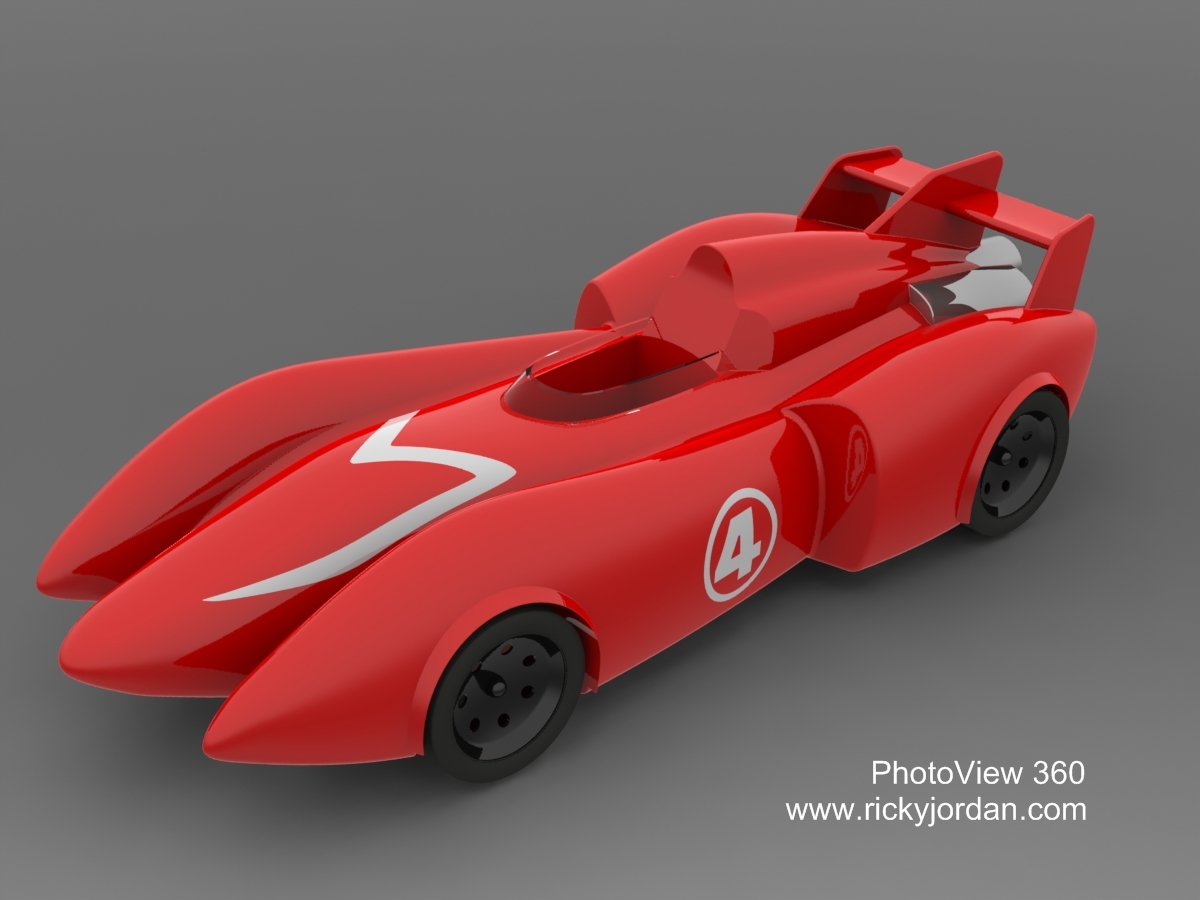
Below is the rendering produced in the second video.

Stay tuned….more to come!