First Look: PhotoView 360

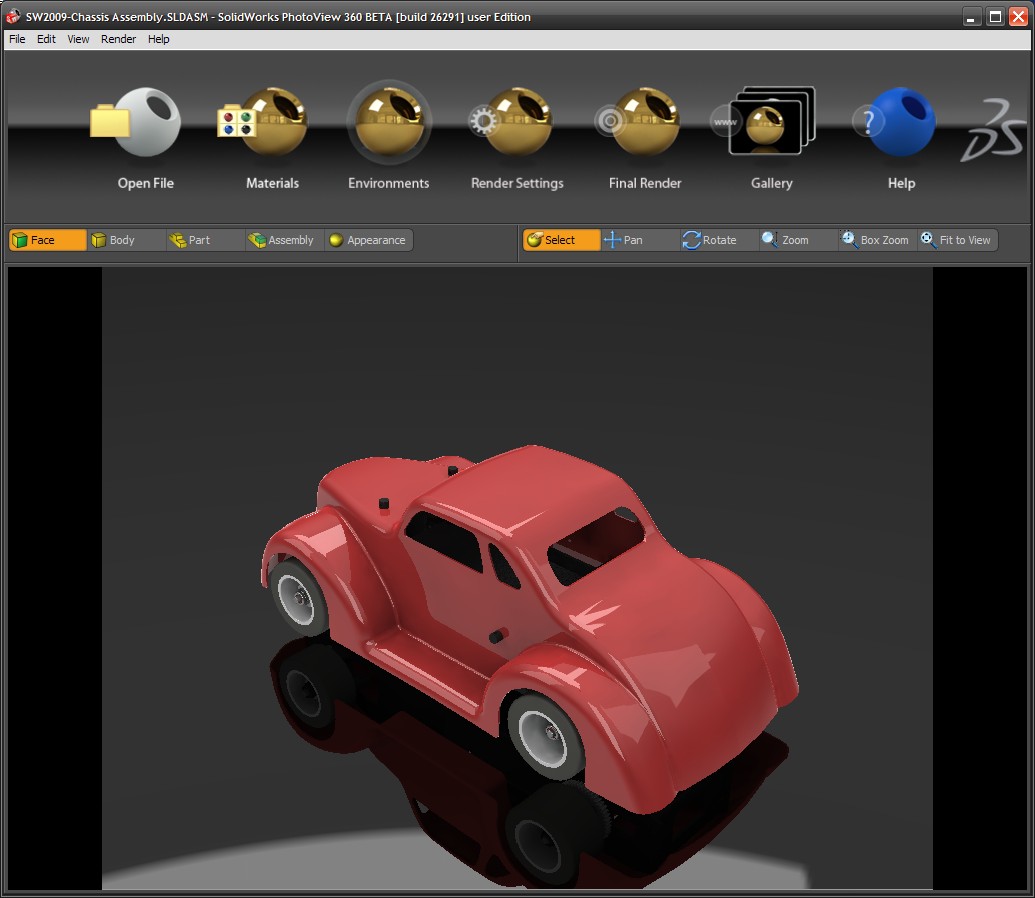
Yesterday I posted a Sneak Peek of PhotoView 360 and today I am posting a First Look of PhotoView 360.  PhotoView 360 Beta is now available for download at the Customer Portal so the rest of the NDA has been lifted.  I can now talk about all aspects of the program.  I honestly didn’t think it would happen this quick so you get the First Look review today which will highlight some of the features of the software.  I’ll post some more in-depth stuff in the coming days.  I’m sure my buddy Rob Rodriguez will be posting some stuff on his Blog too.  Ok…let’s jump right in!  Below is a screen shot of the main User Interface (UI) window of PhotoView 360.

As you can see the UI is VERY simple.  The image you see above is the render preview image.  This is a view of the model that you can rotate, pan, zoom, zoom fit, and box zoom.  It is important to set your floor in SolidWorks as this is the floor setting that PhotoView takes.  The nice thing about this is that it makes rotation of the model easy.  There is no way you can get your model turned upside down.  With PhotoView 360 you can apply Materials through a drag and drop interface.  You also have several different Environments that can be loaded.  Environments carry the background, floor, and lighting setups.  Lets start with the Materials.  When you click the Materials button shown above, a separate window containing the Material selections opens.  The main UI window opens smaller than your full screen size.  This is so that your preview window isn’t too large.  The larger the preview window, the longer it takes to update.  The Materials window is shown below.

You might notice that the Material categories look similar to Appearances in SolidWorks.  That’s because PhotoView is designed to import most of the Appearance data setup in SolidWorks.  In order for this to happen consistently, you’ll need to save your files in the SolidWorks 2009 format.  PhotoView will open files from previous versions, but will most likely have no Appearance/Material data.  Some of the Materials DO have textures and you have the ability to make some adjustments to those textures.

You have the ability to apply Materials to model Faces, Bodies, Parts, Assemblies, and Appearances in PhotoView 360.  The Appearances part of this might throw you off a bit at first but I have found it to be very useful.  When you setup Appearances in SolidWorks, your Appearances are applied in Groups.  For instance, you may apply a single Appearance to many components in an Assembly.  If you have done this, you can drag a Material over one of the components in that group with the Appearance mode selected and ALL of the components in that group will receive the Material in PhotoView.  If you set your Appearances up right in SolidWorks, it can be a timesaver in PhotoView.

When you click the Environments button in the main UI, a separate window opens in a similar manner as the Materials window.  The Environments window is shown below.

There are 15 default environments that come with the software.  I have not gotten into the software enough yet to fully understand what changes can be made to these environments but it looks like the options may be somewhat limited.  Double clicking an Environment box activates it for the model window.

I have prepared two separate videos that show PhotoView 360 in action. Click on the image below to view the first video which shows a model in SolidWorks followed by the quick setup in PhotoView 360.

The second video shows the actual rendering of the model.  I did this to show just how fast the rendering is in PhotoView 360.  Notice the two boxes in the video.  Since I have a dual core processor, PhotoView 360 is taking advantage of that and is using BOTH processors to generate the rendering.  Click on the image below to view the second video.

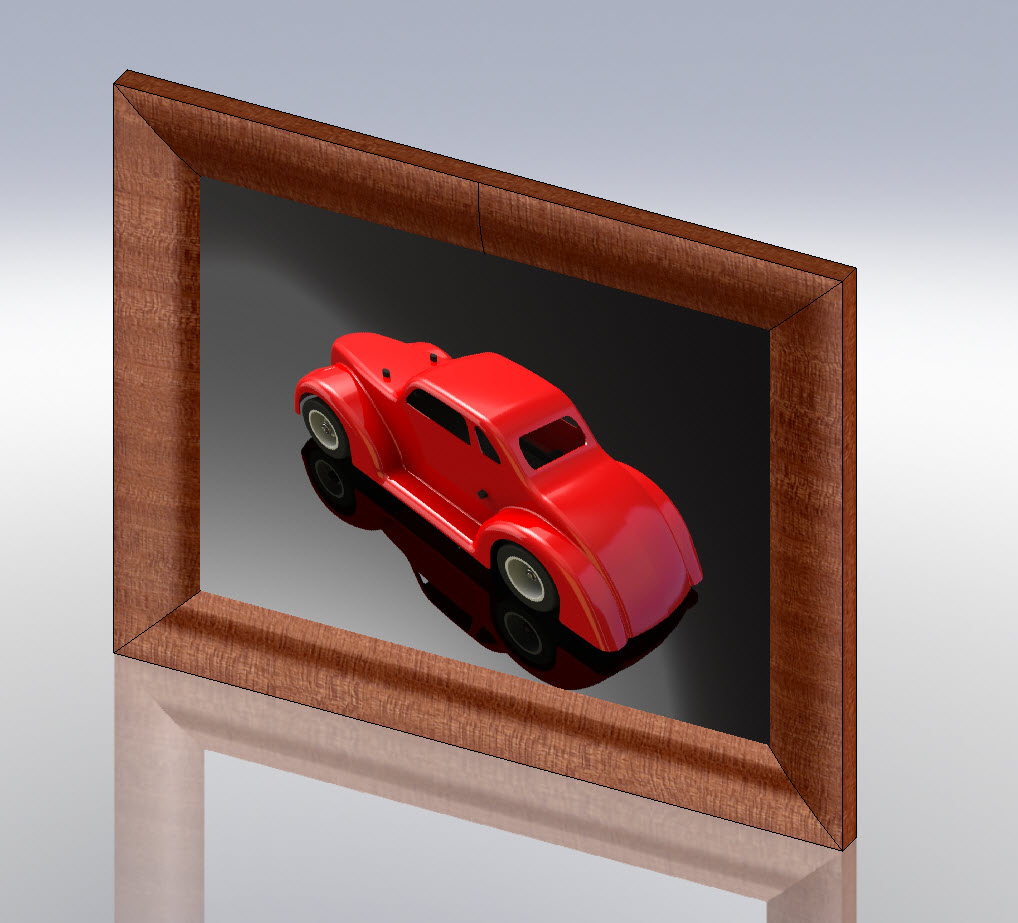
Below is the rendering produced in the second video.

Stay tuned….more to come!

SolidWorks 2009: Goodbye Colors. Hello Appearances!

One of the WELCOME changes in SolidWorks 2009 is the “consolidation” of Colors and Appearances.  Colors/Optics have actually been removed from the software with Appearances left behind to manage it all.  As I pointed out a few weeks ago, in SolidWorks 2008 you needed to be mindful of how you apply Colors and Appearances.  Appearances were ONLY tied to RealView and PhotoWorks.  Obviously in SolidWorks 2009 this is no longer the case.  Appearances also now manage Textures too.  Both the Texture and Color icons have been completely removed from the software to eliminate confusion.  In an effort to communicate the new functions of Appearances better, SolidWorks has added some color to the Appearances Icon.  (It is shown above.)   The unified Color System to me is MUCH easier to manage.  You no longer have to be conscious of whether RealView is on or off when you assign colors to your model.

Another new enhancement to Appearances is the Pop up Toolbar that appears when you drag an Appearance on top of a part face or component in the assembly from the Task Pane.  It allows you to “on the fly” apply the Appearance to a Face, Feature, Solid Body, Entire Part, or Assembly Component.  A little trick I learned in part files is that if you are applying an Appearance to the entire part, you can just double-click the Appearance selection in the Task Pane.  (Very nice shortcut - No dragging necessary!)  The result of these two behaviors allow you to quickly apply Appearances to your model without ever having to open the Appearances PropertyManager unless you want to tweak the colors to something that isn’t default in an Appearance.

You can now make Appearance Modifications via the Display Pane.  All you have to do is left-click in the Appearance column of the Display Pane next to a component or part feature (depending on whether or not you are in a part or assembly) and select “Appearance” from the pop-up menu.  Speaking of the Display Pane, they are much more “tidy” in 2009 since the Texture & Color/Optics columns have been removed.

UPDATE - 8/5/08: I have updated the section below since I missed how to adjust the Texture scaling in the first version of this post.  Thanks to Justin for pointing this out.

One thing you might not notice with Appearances with Textures is that the Scaling is controlled by sizing the rectangle shown in the graphics area.  Users might be looking for a slider bar which is how Textures (outside of Appearances) were done in previous versions of SolidWorks.  Depending on the Mapping Style selected, you also have the abilty to rotate and control the axis direction of the texture.  There are three Mapping size preset options for quick selection.  If you want to fine tuned the scaling more, that is when you would use the rectangle in the graphics area.    If you enable PhotoWorks, numerical entry is available for mapping size.

Below is a link to a video demonstrating some of the new functions of Appearances.  Enjoy!

As always, please feel free to leave comments or questions.  Stay tuned….more to come!

SolidWorks 2009 Enhancement Highlights
IT’S TIME!  12:00AM August 4, 2008.  Although I figured very few people will be reading this when it is posted, I wanted to make sure it got out in my subscriber e-mails which go out in the middle of the night.  It’s time to start talking OPENLY about SolidWorks 2009.  The purpose of this post is to give a quick overview of some of the major enhancements.  I won’t get into much detail in this post on any of the enhancements.  Details will follow in separate posts and I’ll TRY to keep them coming.  I will however include a few images along the way in this post.

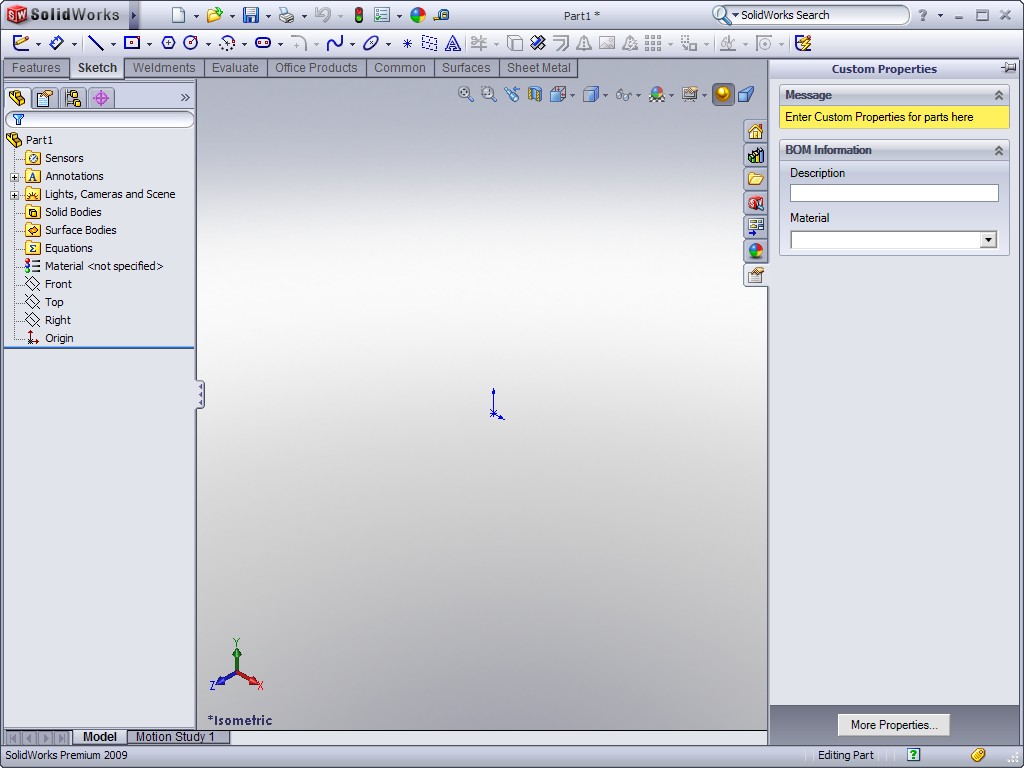
The first enhancement I’m going to talk about is one of my favorites.  I love things that make engineering processes more efficient and this one definitely does that.  A new tab has been added to the Task Pane that allows users to enter Custom Properties!  How and what information is entered is completely customizable.  The content for this Task Pane tab is created using the Property Tab Builder which is a new tool that is provided as part of your SolidWorks 2009 installation.  I’ll have a detailed article on this with some examples later.

Something that was shown at SolidWorks World earlier this year is a Slot Sketch Tool.  This is a REALLY handy tool that allows you to create both straight line and arc based slot features quickly.  One of the really nice things about this tool is that when you create features from it, a centerline temporary axis is automatically added!  This of course will help in mating fasteners to the slot!  Other notable sketch enhancements include the ability to reverse directions on sketch dimensions.

The measure tool will now display dual dimensions!  This is one of those really simple enhancements that probably didn’t take very long to program but will receive high praise from users.  The thing I like the most about this is I no longer have to constantly switch the Measurement options when dealing with an assembly that was designed with parts in both inches AND millimeters.

Click to Animate

Click to Animate

You can now create Sheet Metal Parts off of existing solid bodies!  The Convert to Sheetmetal command allows you to create very complex sheetmetal shapes from a Solid Body.  The UI for the feature allows you to select the faces of the solid body that you want to use for the sheet metal part.  The cool thing is you do not have to use all the faces!  Other notable Sheet Metal enhancements include the ability to add a Cross Break to a planar face and Chamfered/Beveled edges on sheet metal parts.  Click on the image to the left to see an animated GIF file.

The Boundary feature has now been expanded to include solid boss/base and cut features.  The feature works almost EXACTLY as it did in the Boundary Surface feature in previous releases.  The Freeform feature has seen some significant enhancements.  There are no NO LIMITS on the number of sides of a surface/face patch used for this feature.  Previous versions limited the use of this feature to four sided patches only.  Also new is the ability to change the angle of the U-V mesh which controls how curves and points are applied.  I am very excited about this one and will be putting some time aside in the coming weeks for a full article with lots of examples.

Plastics designers will love the the new Lip/Groove Feature!  This feature automates the task of creating interlocking edges between plastic parts that snap or bolt together.  I am one that will be using this feature quite often.  My testing in the later Beta versions has fared very well.  Stay tuned for more on this feature.

Click to Animate

Appearances are getting some updates in this release as well.  Color/Optics and Textures are being replaced by Appearances.  This is a GREAT thing and eliminates most of the procedural recommendations required for SolidWorks 2008 that I outlined a few weeks ago.  The Materials database has gotten a complete overhaul.  The user interface and database itself are now TRULY unified for SolidWorks and SolidWorks Simulation (There have been some product name changes.  Check out this article at Mike Puckett’s Blog for details.)  The Materials interface now opens in a separate window instead of in the PropertyManager.  The default Materials are read only but you can create custom Materials whose properties can be changed.

Instant3D has been enhanced by including it in many more areas of the software.  The biggest is probably support for Instant3D in assemblies.  There are also changes in the options available for using Instant3D on sketch based features.  Instant3D has also been made available to Weldments.  Live section has seen some enhancements that in my mind drastically improve its ease of use.

There are several enhancements to features and functions based on Derived Parts.  The Split command now has the ability to reattach existing child parts when split features change.  You can now also carry over sketch and feature dimensions in Mirror Parts and Derived Parts.

Assemblies have seen SEVERAL enhancements.  One of the most notable is the ability to create Bills of Materials (BOM) in an Assembly file.  All the capabilities that you have in Drawing BOMs are also there in Assembly BOMs.  When you create a drawing you have the choice to use the Assembly BOM in the Drawing.  Large Assemblies received some enhancements.  Naturally, most of the enhancements in this area are based on improving performance.  Some of the many areas with improved performance include adding mates and components as well as working with Drawings of extremely large assemblies.  SpeedPak is another feature that is sure to be a hit with folks working with Large Assemblies.  There is a lot to this feature so I will save many of the details for a later post.  With Speedpak you can create a simplified assembly configuration that only fully loads the faces or bodies that you want it to.  You can do several tasks with SpeedPak assemblies which include mating selected faces/bodies in upper level assemblies as well as generating BOMs and Balloons on Drawings.  One last Assembly enhancement worth mentioning is the ability to propagate assembly features down into parts.  This one will be nice!  You even have the choice of keeping the definition of the feature at the assembly level while also propagating it down to the part.

Drawings for SolidWorks 2009 introduce Drafting Standards which is a MUCH better way of organizing all of your Drawing setting/standards.  Another enhancement that is very interesting is the ability to restructure Bills of Materials.  You can do this WITHOUT affecting the assembly structure.  Title Block Management has also been introduced to speed up the process of filling out title block data in Drawing Sheet Formats.

Well, that about summarizes it.  Have I covered every enhancement?  Heavens NO.  This first day I wanted to get your appetite wet. :-)  Tomorrow I will have another post that will get into some of the details.  Feel free to leave Comments and Questions if you like.

Stay tuned….more to come tomorrow!

SolidWorks 2008: Colors and Appearances

If you frequent any of the SolidWorks forums around the web you have probably seen discussions relating the differences and nuances of Colors and Appearances in SolidWorks 2008.  This is a subject that does have a few users up in arms.  To their defense, it can be a bit hard to get your arms around the whole concept of it without some background information.

Colors_Appearances First off, let’s define Colors and Appearances.  Colors are what we have had in SolidWorks for years.  You have the ability to apply Colors to parts, features, faces, bodies, & assembly components.  Appearances have similar capabilities in how you can apply them to SolidWorks parts and assemblies.  They carry with them not only colors but textures and other effects that make the Appearance more realistic when RealView is enabled.  Appearances also transfer to PhotoWorks with great success most of the time.  This can save time when you get around to creating a rendering of your product.  When RealView is ON, Colors (and Textures) cannot be applied or changed.  Depending on how and when the Colors where applied, you can get some varying degrees of results in RealView/Appearance mode.

The first thing you need to remember is that if you turn on RealView and apply Appearances, the “color” used in the Appearances applied is transferred to the same entity selected in Colors.  Where this can go wrong for many users is when they spend all their time applying colors in Color mode to various entity types.  When they switch over to RealView/Appearances they are shocked to find that NONE of their colors have transferred!  An import thing to remember is that this occurrence applies specifically to parts or assemblies that have had the Colors applied in SolidWorks 2008.  If you open a model from a previous version of SolidWorks that have had Colors applied in a similar manner, all the Colors (no matter if you selected faces, bodies, features, etc.) are automatically ported to RealView/Appearances.

To avoid these issues, apply the “colors” with RealView ON using Appearances. If you turn off RealView, your Colors should look the same (without all the RealView effects of course).

I can tell you that changes are being made in SolidWorks 2009 that will simplify this issue but since that information is still under NDA I cannot elaborate.  If you want to check out the changes in detail, I highly encourage you to visit the Customer Portal and participate in the SolidWorks 2009 Beta program.

CLICK HERE to view a video that demonstrates the details outlined above.

There is a GREAT presentation on RealView given by Ron Bates and Mark Biasotti from SolidWorks World 2008.  You can download this presentation at the Customer Portal in the links section under “SolidWorks World 2008″.  You can find their presentation in the Wednesday 1:30 time slot.

Here is some good reference information on Appearance Callouts posted by The SolidWorks Geek (Alex Ruiz).  I mention this because I used Appearance Callouts a few times in the above video demo.

Stay tuned….more to come!