
SolidWorks 2010:  Awesome Tables!
Sun, 02/21/10 – 11:55 PM | Comments

Sometimes when testing newer versions of Software you discover some “unreported” enhancements that really can be a time saver.  That type of enhancement is the source of this post, but first we’ll take an overall …

Read the full story »
SolidWorks News

SolidWorks Reviews

SolidWorks Tips

SolidWorks Video Tips

SolidWorks World

Home » SolidWorks Video Tips

The S Key Experiment – Part 2

Submitted by Ricky Jordan on Thursday, December 11, 2008Comments

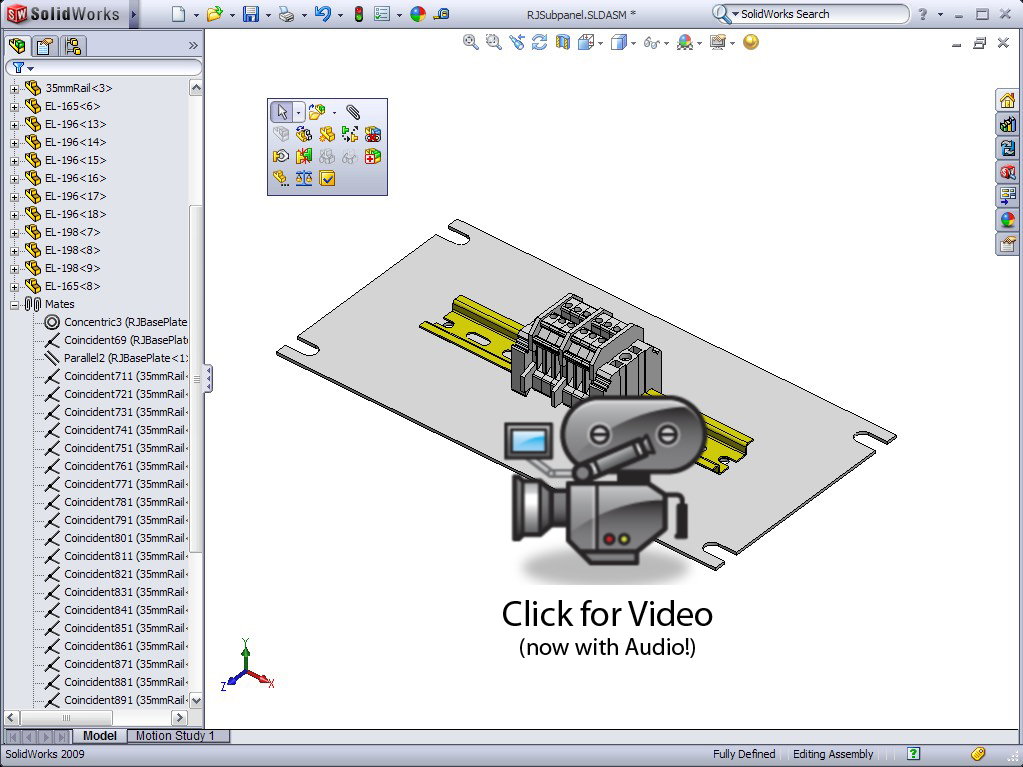
It has been a little over a week since I turned off ALL my Toolbars AND the CommandManager and so far I can say with certainty I have not DECREASED my efficiency by just using the S Key command.  It still takes a little getting used to but so far I REALLY like it.  Over the last few days I put together an assembly with roughly 400+ parts in it and the S key worked very well!  With that I present to you the second video post on the S Key Experiment which shows the use of the S Key shortcut bar in use in the Assembly environment.  I also managed to include a few examples of how beneficial Mate References can be in assemblies.

Just in case you missed the first post on the S Key Experiment, you can find it HERE.  Click on the image below to see Part 2 of the S Key Experiment.

Stay tuned…more to come!

Share and Enjoy:
  • StumbleUpon
  • Digg
  • Technorati
  • del.icio.us
  • Facebook
  • LinkedIn
  • email
  • Google Bookmarks
  • FriendFeed

No related posts.

Related posts brought to you by Yet Another Related Posts Plugin.

  • Steve R
    I "traded" my "S" key shortcut and my "View Orientation" key shortcut. Since my left hand has to move between the keyboard and SpacePilot, I found myself always looking down at my keyboard for the "S" key. I can hit the Spacebar every time without looking. I very seldom used the "View Orientation" anyway, with Ctrl-1, Ctrl-2, etc available.

    This little trade increased my workflow even more. I work so fast now, I can generally leave work about 2 hours before I get there :)
  • Philip
    People - program the 'S' key onto an unused button on your mouse.
    I use a Logitech mouse that has 7 programmable buttons and other than entering numeric data, never have to touch the kb! :)
  • I have a Dell mouse with 2 side buttons. However, the Logitech driver for it gums up my machine very badly. I am stuck using the generic mouse driver. It would be awesome to be able to put the S key on one of the side buttons. I may have to get some research done on finding a better driver.
  • fcsuper
    Have you checked to see if you have the gaming option checked on your logitech driver. If so, that's likely what's going on...turn it off.
  • Thanks for the tip, will check it out in the AM when I get into the office.
  • Great suggestion Philip. I might have to go mouse shopping soon! :-)

    Ricky
  • It appears that the "S" key experiment is going quite well for you Ricky. So far for me, I have not had any issues yet other than customizing on the fly when I find I need another command at certain times.
  • I hear ya Rod. I've been adding a few as I go as well. I've started to use it in Drawings now and REALLY like it there! I'll have a post coming soon on that topic.

    Ricky
blog comments powered by Disqus