
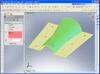
Over the past year, the Move Face tool has become one of my favorite tools in SolidWorks. It was originally introduced as a tool that helps users make modifications to imported bodies (parts with NO feature tree). The feature works so well, I have found myself using it on SolidWorks native models.
The Move Face tool can be found under Insert->Face->Move in the File menu. The feature requires no pre-selects, but of course like most features in SolidWorks, they can be used. The Move Face feature has three options: Offset, Translate, & Rotate.
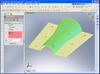 The Offset option allows you to create a new face by offsetting the selected face(s) a specified distance. Like all Move Face options, you select one or more faces to move and SolidWorks restructures non-selected faces of the model to accommodate.
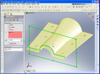 The Translate option allows you move the selected face(s) linearly based on a specified distance and direction reference. Any plane, planar face, linear edge, or reference axis can be used as the direction reference.
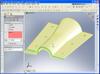 The Rotate option allows you to rotate the selected face(s) about a specified axis reference. Any linear edge or reference axis can be used as the axis reference.
I mentioned at the beginning of this article that I have been using this feature on native SolidWorks models. In most cases I recommend building the feature correctly in its initial construction rather than “tweaking” it with the Move Face tool down the feature tree. Rather than leaving you to wonder, I thought I would explain one such instance where the Move Face tool worked really well on a native SolidWorks part.
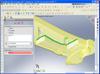 Recently, I was working on a two piece plastic case design. The surfacing required was pretty complex. Side “A” was to be a mirror image of Side “B”. Naturally, you only wanted to have to create that complex geometry once, so a mirror body was a natural choice. Although the outside surfaces of Side “A” and Side “B” are mirror images, the inside surfaces had to be different. I needed both sides to be parametrically linked, so at a certain point in the feature tree, the first side constructed was mirrored to produce a second solid body. The second solid body needed some “tweaks” in a few spots for inner wall heights and positions. Move Face worked PERFECTLY for this! It processed fast and I saw no problems with it when features around it were changed.
I hope this has provided a little more insight to an impressive, yet little known tool inside SolidWorks. Stay tuned…..more to come!