
Just because a feature has been in SolidWorks for quite some time doesn’t necessarily mean that it is well known throughout the user community. One great example of this is the Save As Part feature. I’ve found quite a few users over the last few years that were unaware of this handy feature and the different applications it can be used for.
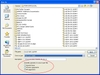
 As the name plainly states, the Save As Part feature allows you to save a SolidWorks assembly file as a part file. There are three options available in the Save As dialog box that can sometimes go unnoticed if you don’t look closely. If
  you select the “All components” option, all components of the assembly will be saved as solid bodies which result in a multi-body part file. The “Exterior components” option will only save components which show on the outside of the assembly into a multi-body part file. All components that are enclosed within the assembly will be ignored in this case. The final option is the “Exterior faces” option. This will save all exterior faces of the model as surface bodies into the part document. The nice thing about this is that it doesn’t save every individual face as a separate surface body. All faces that share an edge are automatically stitched together into a single surface body.
Now, what applications could you use this for? Well, there are many, but I have tried to list a few that I have experience with.
With many companies making 3D models of their products available on their websites, you can sometimes encounter an imported assembly file of an item that you are simply purchasing for your product without making any modifications to the parts. Why bog down you overall assembly with an imported assembly that contains multiple part files? A simple Save As Part operation can result in a single file that represents the purchased part. It is smaller, has less overhead, and can be easier to deal with when putting it into your PDM system.
What if you have an extremely large assembly or better yet a collection of extremely large assemblies that you would like to interact with but without all the overhead? I’ve seen quite a few cases where the Save As part – Exterior faces option has worked very well for an application such as this. One example in particular involved incorporating several large automation machines into a plant floor layout for process evaluation. The surface bodies have less overhead but still show all of the machine’s outer details.
If you need to export data to a CFD package for aerodynamic analysis and you do not need any internal components of the assembly, the Save As part – Exterior components option just might be what you need. The fact that it keeps all the exterior parts as solid bodies gives you a quick way to get rid of all the internal parts that are not needed for that type of analysis. This particularly works well in cases where the CFD package requires solid bodies for import.
One thing to keep in mind with this feature is that it is NOT parametrically linked back to the Assembly. If the assembly is updated, the multi-body part file will not update. Make sure this behavior fits your design requirements before using it.